Projects that bring together
all client-related work

Group invoices and quotes by specific project, and track
the status of tasks and revenue all in one place—instead of searching for documents one by one.
star iconstar iconstar iconstar iconstar icon
3000+ businesses already trust us
Projects that combine invoices, quotes, and tasks
Group invoices and quotes into a single project. Eachproject brings together all related invoices and quotes in one place
—instead of having to search for documents one by one. A project can be linked to a single client in your client database, or it can be associated with no client at all.
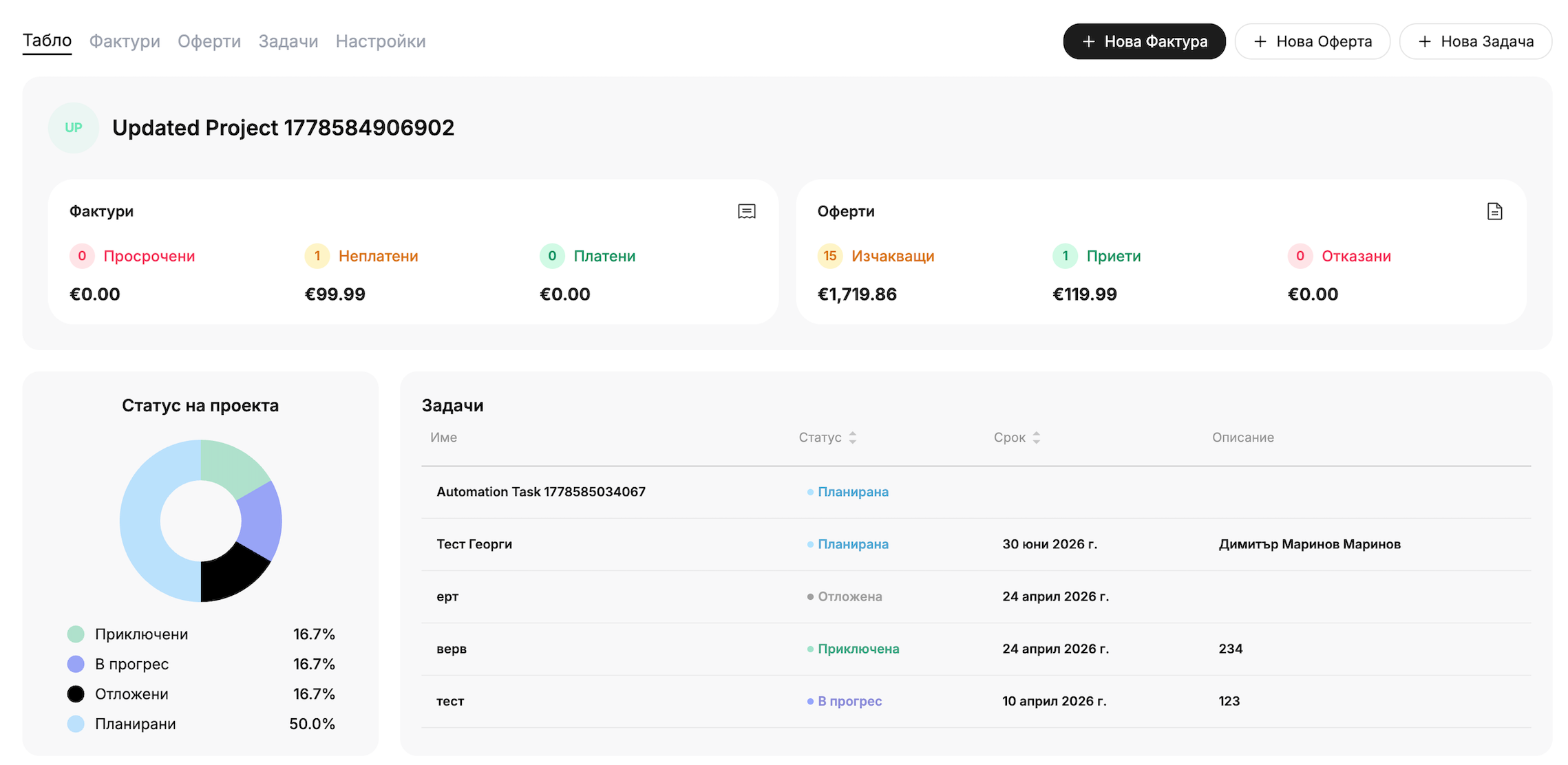
Project Overview Dashboard: Your dashboarddisplays overdue, unpaid, and paid invoices, as well as pending, accepted, or rejected quotes. You can view task progress and the project’s overall financial management all in one place.
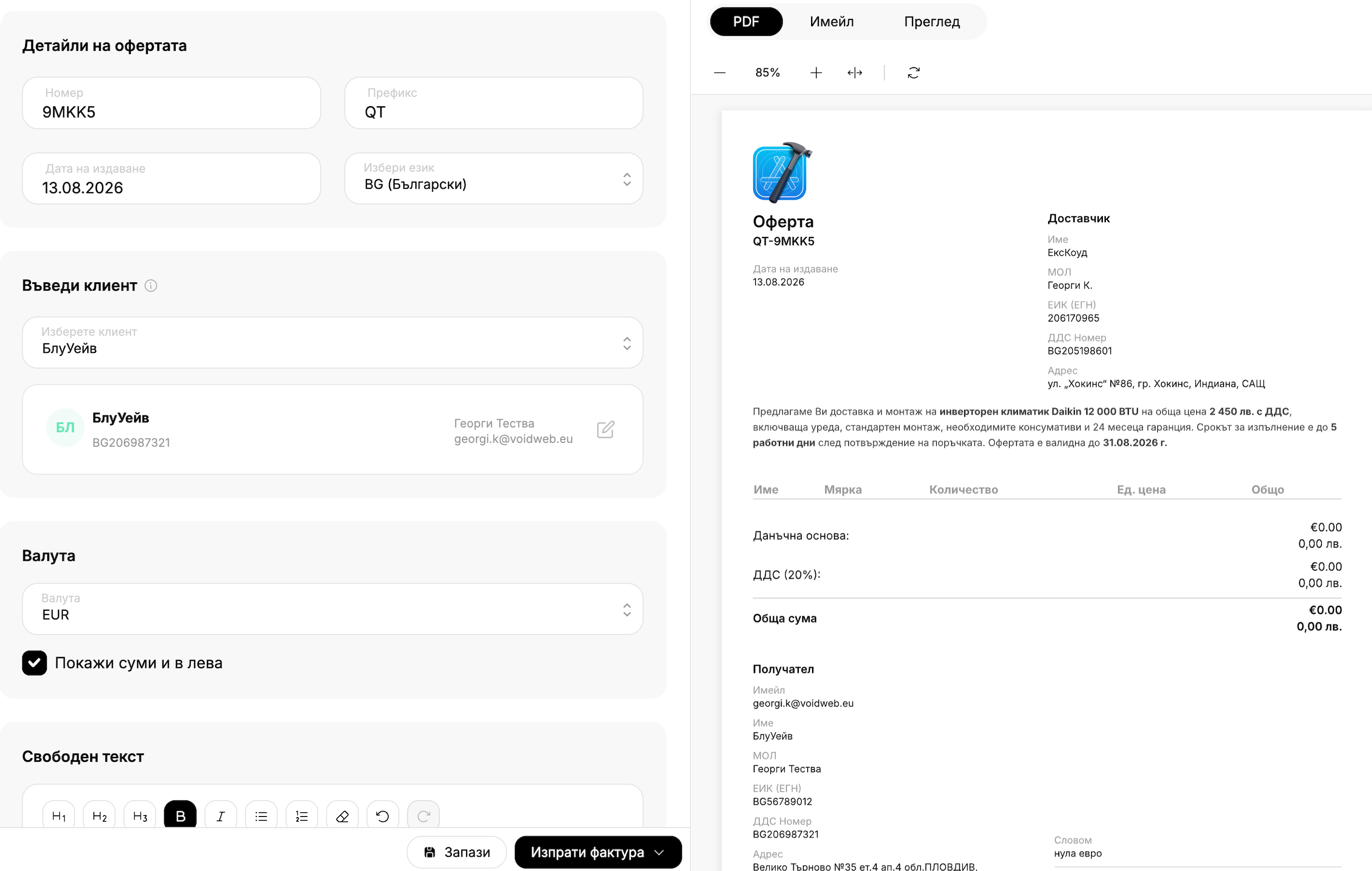
Creating an Invoice Directly from the Project: Using the “New Invoice” and “New Quote” buttons within the project itself, the customer and
project details are filled in automatically—invoices are issued in seconds, without having to re-enter data.
Statuses and Organization with a Kanban Board: Movethe project between statuses—Planned, In Progress, Completed, Deferred—by simply dragging items on the Kanban board or rearranging them within a column.
Project Tasks:A simpleto-do list with a title, description, status, and due date for each task—an easy way to track project progress without unnecessary complexity.
Automatically Create a Project from an Invoice or Quote: Whencreating an invoice or quote from scratch, enter a new project name
in the field—the project is created automatically upon saving, without having to go
through the separate online invoicing section first.
Everything about the project in one place, automatically linked
Project Overview Table
You can view overdue, unpaid, and paid invoices, as well as pending, accepted, or rejected quotes—all in euros—on a single page. A pie chart shows the status of the tasks, and the progress bar shows how many of them have been completed.
Get started for free
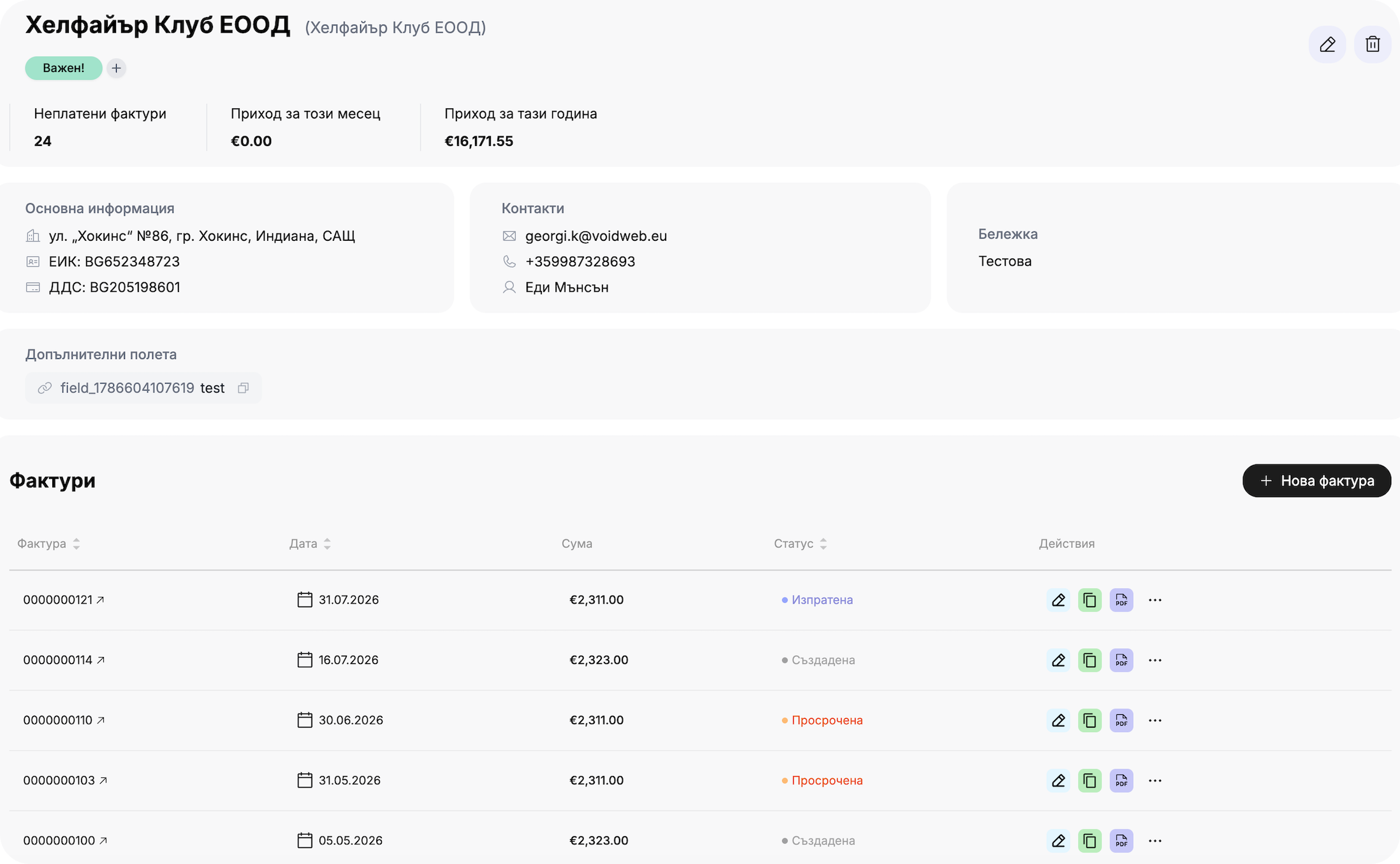
Invoices and quotes related to the project are generated automatically
You can create a new invoice or quote directly from the project—the client and project details are filled in automatically. It works the other way around, too: when you’re creating one from scratch, enter a new project name, and it will appear automatically when you save it.
Get started for free

Get started in 30 seconds

Track your company's cash flow all in one place. Easily track income and expenses with automated reports from Inverso.
Frequently asked questions
How do you create a project?
chevron down icon
From the separate "Projects" section, or directly while creating an invoice or quote using the "Attach to Project" field. If you enter a new name, the project is created automatically when you save.
Can a project be associated with more than one client?
chevron down icon
No—a project can be associated with exactly one client from your client database
, or with no client at all.
What does the project dashboard show?
chevron down icon
A dedicated summary page: overdue, unpaid, and paid invoices, and
pending, accepted, or rejected quotes, a task status timeline and a progress bar for completed tasks, plus the Invoices, Quotes, Tasks, and
Settings tabs—for comprehensive financial management of the project.
Can I create an invoice directly from the project?
chevron down icon
Yes—using the “New Invoice” and “New Quote” buttons within the project itself. The client and
project details are filled in automatically, and invoices are issued in seconds.
What are the different statuses of a project?
chevron down icon
Planned, In Progress, Completed, Postponed. Move the project between these statuses by dragging it on the Kanban board using
.
Can I set a deadline and assign a person in charge for a task?
chevron down icon
Project tasks have a title, description, status, and due date.
What happens to the invoices if I delete a project?
chevron down icon
Tasks are deleted, but the associated invoices and quotes remain intact—
simply now point to a deleted project.
Are the projects accessible to everyone on the team?
chevron down icon
Visibility depends on the user's role and permissions within the organization.
From which plan is the "Projects" feature available?
chevron down icon
This feature is available starting with the Solo plan.