Automation happens behind the scenes. You only see the result.
Automation Triggers:A newinvoice, a status change, a new or updated customer, or a new or updated service—any of these actions can trigger automation to other applications.
Actions in Inverso via Zapier: Create, send, or mark an invoice as paid or canceled— . Marking an invoice is a toggle action, and Zapier communicates with Inverso through secure API systems.
Connect Without Technical Knowledge: You grantaccess directly through your profile—no API keys or technical settings to enter manually. ERP integration is available.
Create a complete invoice via Zapier: You specifythe currency, customer, items, due date, and VAT settings—using convenient drop-down menus for payment method and bank account, not just the amount.
Access Control: You canclearly seewhat permissions you're granting when you connect—you have full control over your financial management, and there's a "Disconnect" button available at any time.
Role-Based Security for the Team: Accessdepends not only on the user's approved permissions in Zapier but also on their role in Inverso—ensuring secure ERP integration for the entire team.
Connection monitoring. Automation for every action.
Clear Control During Connection
You can see exactly which permissions you want to grant before confirming—viewing invoices, creating and editing customers, and viewing the organization. Complete transparency for every ERP integration.
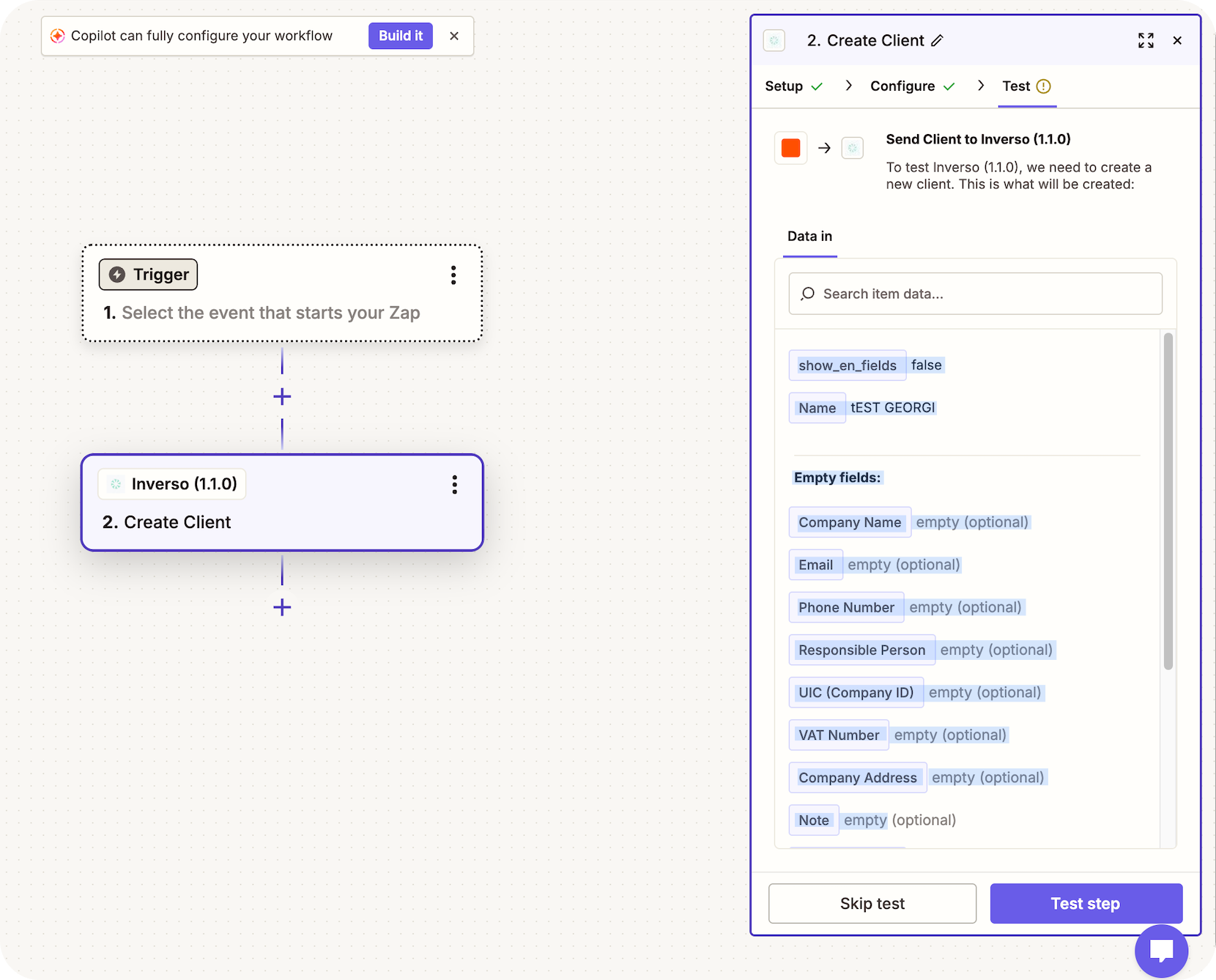
Zapier sends the data directly to Inverso via secure API systems—a new client is created automatically, without the need for manual data entry. This is part of a broader automation of accounting processes that saves time and reduces the risk of errors in the financial management of your business.
Inverso connects to over 7,000 apps via Zapier—including Gmail, Google Sheets, , Slack, and more—to automate your accounting and invoicing processes without the need for code. Available on the Team or Enterprise plan.
How do I connect to Zapier?
Under Settings → "Integrations," you'll see a card for Zapier with a connection button. You grant access directly through your Inverso account—you don't need to manually enter any keys or technical settings.
What can trigger automation?
A new invoice, a change in invoice status, a new or renewed customer, a new or renewed service—each of these is a trigger for automation in your financial management system.
Do the changes take effect immediately?
Not quite—Zapier periodically checks for new or updated data, usually every few minutes. That’s fast enough for most automations, but it’s not an instant notification.
Can I control Zapier's access to my data?
Yes, when you connect, you can clearly see what permissions you are granting—for example, viewing invoices at or creating and editing customers. You can disconnect at any time by clicking the "Disconnect" button at .
If I add Zapier as a team member, what kind of access do I have?
Access also depends on your role in Inverso, not just on the permissions granted in Zapier—automations will only be able to do what your role allows you to do in the financial management system.
Can I create a complete invoice through Zapier?
Yes—you can specify the currency, customer, items, due date, VAT settings, and advance payments, with convenient drop-down menus for payment method and bank account, not just a total amount.