Send a payment link and accept online payments securely and quickly. You’ll receive a payment confirmation immediately after the transaction is complete.
Payments that happen automatically. Online, via bank transfer, or by card.
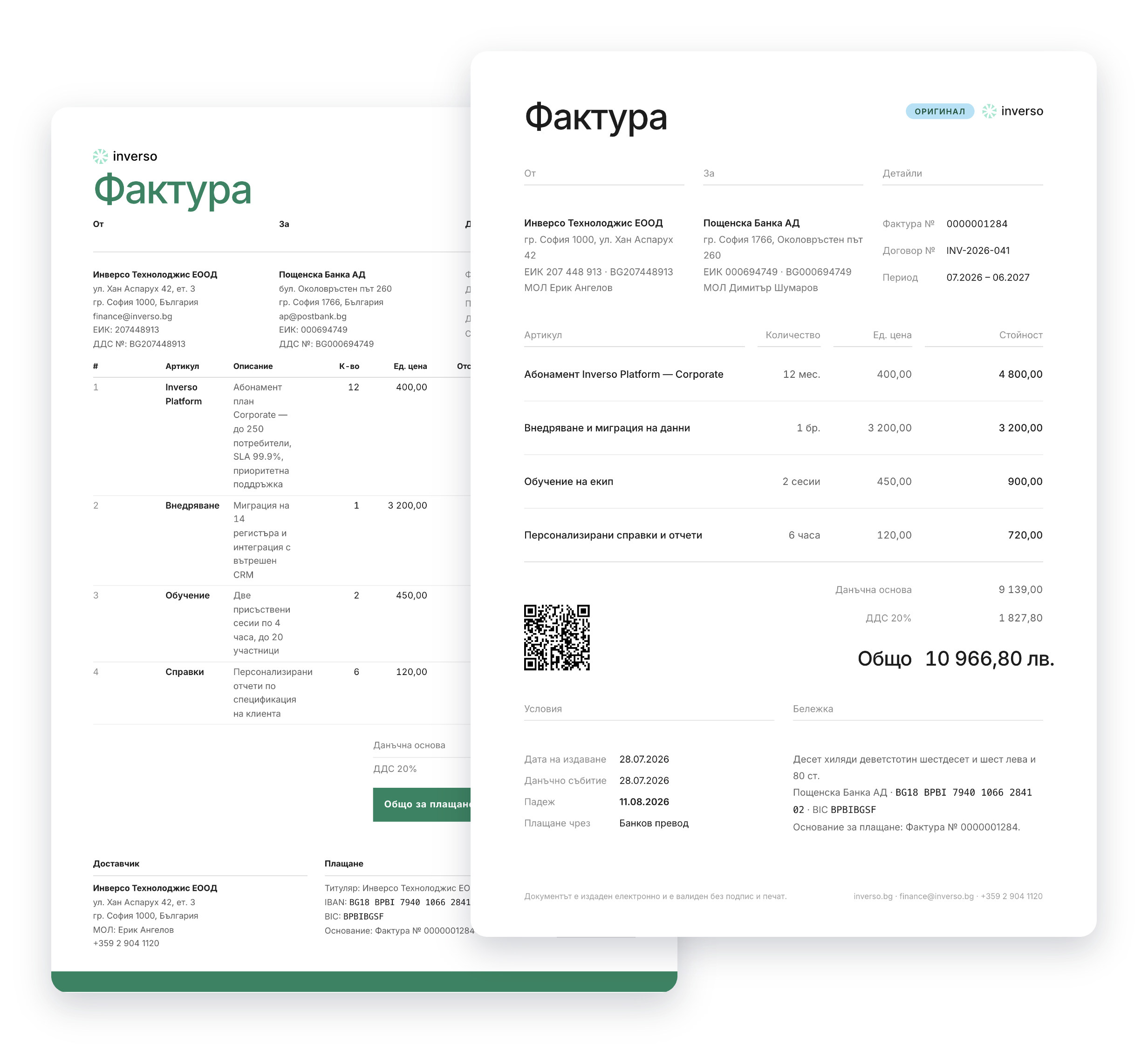
Invoice Payment Methods: You can selecta payment method for each invoice—bank transfer, cash, cash on delivery, or credit/debit card.
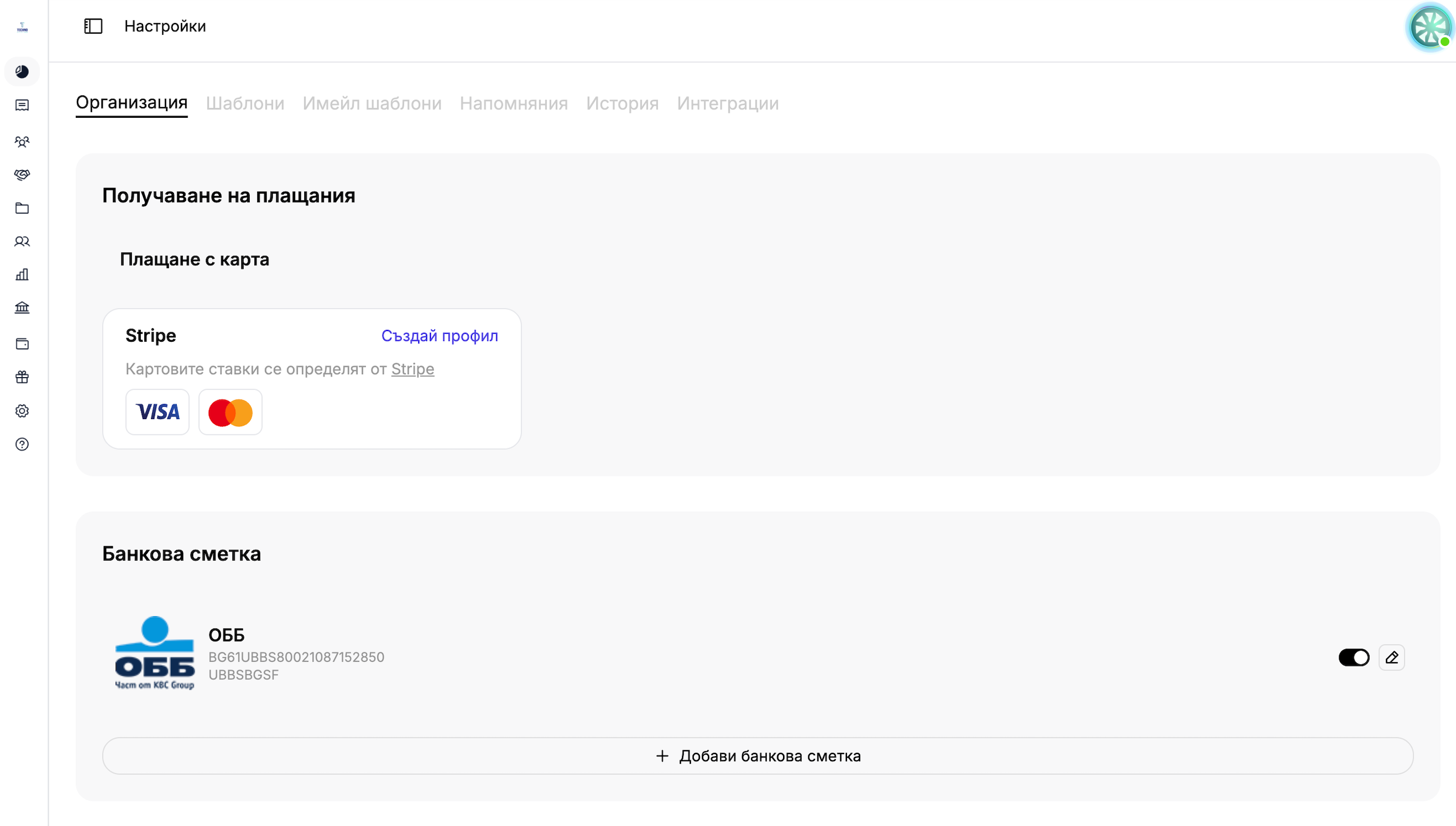
Card Payments via Stripe: Connectyour Stripe account, and your customers can pay online with a credit or debit card at directly through the invoice.
Bank Account Recognition: Enter yourIBAN, and the system automatically identifies the bank associated with it—making it easier to navigate among your payment accounts when making bank transfers.
Automatic Payment Reminders: Enableautomatic email reminders to the customer before, on, or after the invoice due date. Available for Team/Enterprise plans.
Manually Marking as Paid: You canmanually markan invoice as paid—either individually or as part of a group—for cash payments or bank transfers made outside of Stripe.
Tracking Payments and Fees in Stripe: You can access your Stripe account settings at any time to track online payments and fees.
Card payments in seconds. Fully automated.
Card Payments via Stripe
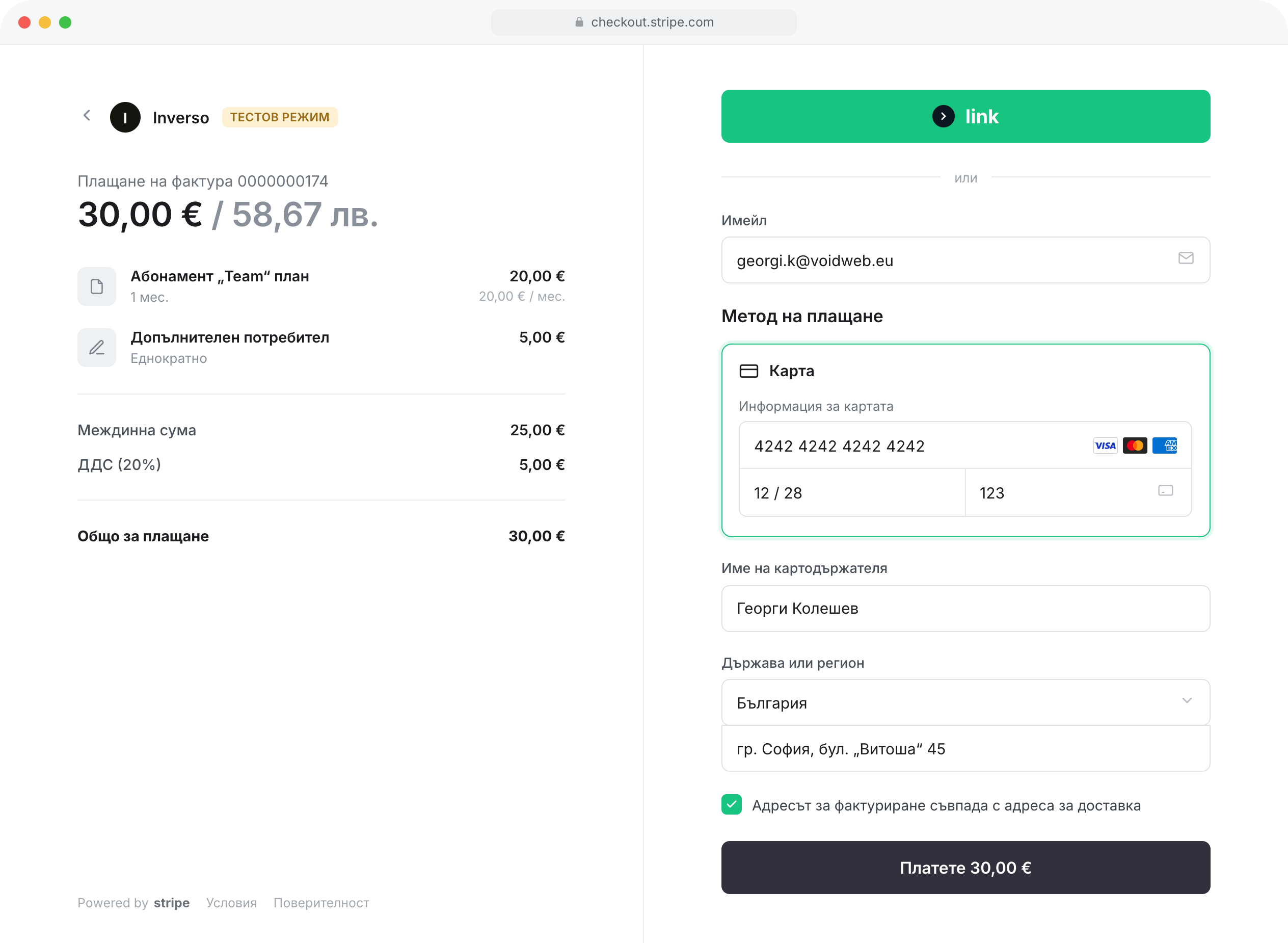
The "Pay with Card" button appears directly on the invoice, without any extra steps for your customer at . The card payment option is enabled once you connect your Stripe account at in the settings.
The invoice is automatically marked as paid immediately after the card payment is completed at , and the customer receives an instant payment confirmation. No waiting, no manual confirmation—the payment is visible to both parties within seconds.
For each invoice, you can choose a payment method: bank transfer, cash, cash-on- , or card payment—flexible payment options tailored to the customer's needs .
How do I enable card payments?
From Settings → Company → "Receive Payments," click "Create a account" and you'll be redirected to Stripe for a quick online sign-up—a step toward accepting online payments directly within the invoice.
What does my customer see if I haven't finished setting up Stripe?
The invoice recipient sees a polite message stating that you are not yet ready to accept card payments through the payment system.
How does the system recognize my bank account?
When you enter an IBAN, the system automatically identifies the bank associated with it —making it easier to navigate between accounts when making bank transfers.
Can I send automatic payment reminders?
Yes—you can set up automatic email reminders before, on, or after the due date of an invoice by specifying the number of days. This feature is available for Team and Enterprise plans.
Can I manually mark an invoice as paid?
Yes, for cash payments or bank transfers outside of Stripe—manually, for a single invoice or in a group, without going through online payments.
Who sets the fees for card payments?
Card fees for online payments made with a credit or debit card are determined by Stripe, not by the platform.
Can I track my payments through Stripe at any time?
Yes, you can go to the settings in your Stripe account to track online payments and view payment confirmations for each transaction.